Visual Studio
Run your OpenQASM circuits on real QPUs and simulators without leaving your editor. The Open Quantum extension for Visual Studio Code takes a .qasm file to live hardware in one click, and adds OpenQASM 2 and OpenQASM 3 language support that works out of the box.
Features
- Syntax highlighting for OpenQASM 2 and OpenQASM 3 (
.qasm,.qasm2,.qasm3,.openqasm), working out of the box. - Inline error checking. Problems are underlined in the editor and collected in the Problems panel as you type.
- Backends explorer. Browse every backend for the selected organization, with live status, queue depth, and Spark availability. Open View live specs for a device to see its coupling map and native and accepted gates, and Select Backend to start a job.
- Validate and run. Pick a backend, set the configuration, and Validate to get a credit quote before anything is spent, then choose a plan and a queue and Submit to real hardware and simulators.
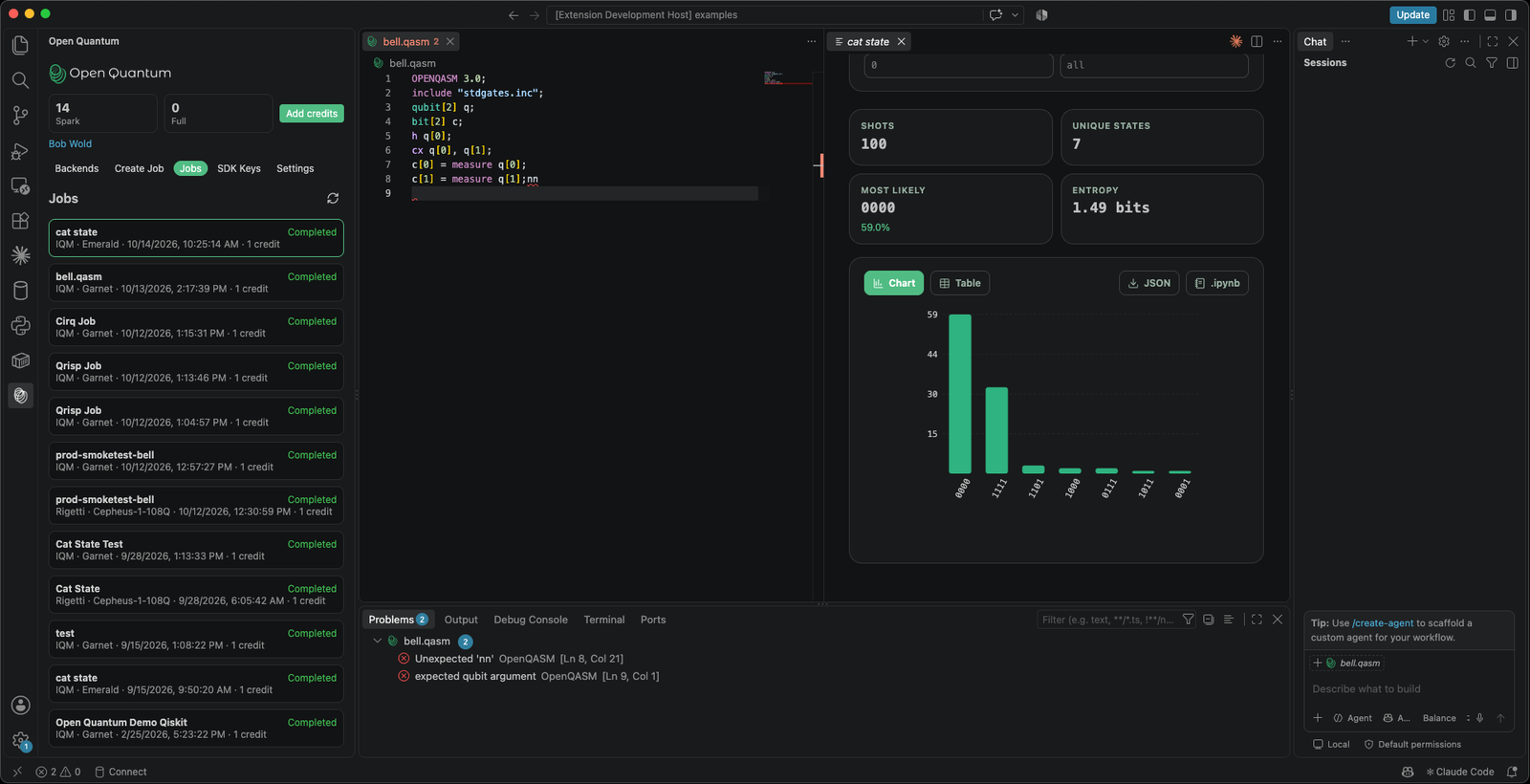
- Jobs and results explorer. A job history that pages with Load more and refreshes in place. Each job shows status, backend, provider, tier, and credits, with a results explorer: a counts chart or table, a state filter, a bit-order toggle, and downloads as JSON or a notebook.
- Credits in the editor. The header shows your Spark and Full credits, with Add credits one click away. Switch organizations from Settings.
- No vendor lock-in. The extension uses the same SDK key and credits as the Open Quantum Python SDK, so your account, backends, and billing are identical across the tools you use.
Example
OPENQASM 3.0;
include "stdgates.inc";
qubit[2] q;
bit[2] c;
h q[0];
cx q[0], q[1];
c[0] = measure q[0];
c[1] = measure q[1];
Open a circuit like this one, pick a backend, and submit. The job opens in the Jobs explorer, and the results pane shows the counts as a chart or a table the moment the job completes.
Next Steps
- Installation & Setup to install the extension and connect your account.
- Features & Usage for the full command list, settings, and the run workflow.