Features & Usage
The extension adds an Open Quantum view to the Activity Bar. From there you can browse backends, submit circuits, and track jobs and results without leaving the editor. The header shows your Spark and Full credits, with Add credits to top up.
Run a circuit
- Open a
.qasmfile. - Start a run with Run on Open Quantum from the editor title bar, Run Without Debugging, or the
Cmd/Ctrl+F5shortcut. You can also open Backends, pick a device, and choose Select Backend. -
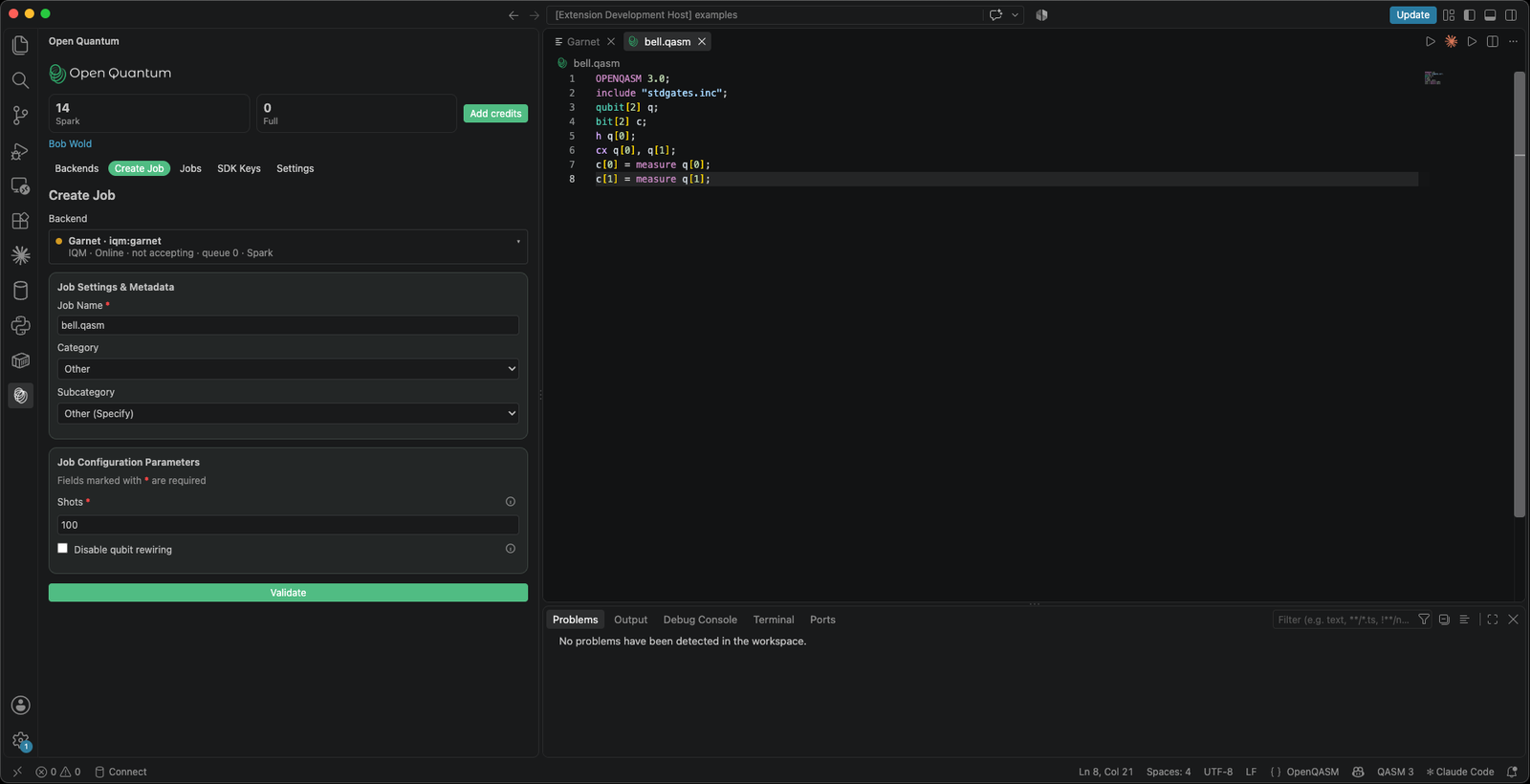
On Create Job, set the backend, a job name, a category, a subcategory, and any configuration parameters. Required fields are marked.
-
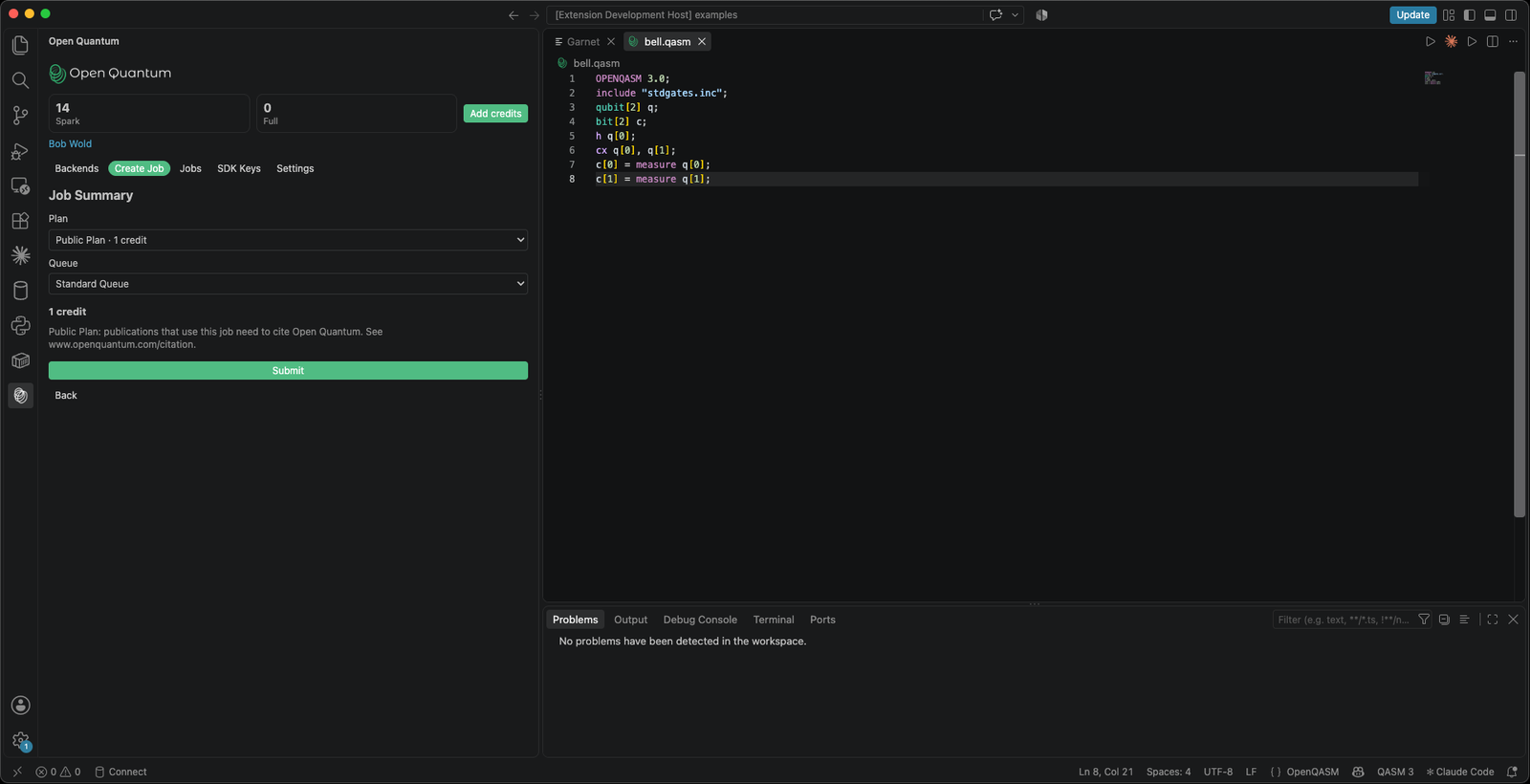
Choose Validate. The extension checks the circuit and configuration and returns a credit quote as a Job Summary, before anything is spent.
-
Pick a plan and a queue, then Submit. The view opens Jobs and selects the new job.
Explore backends
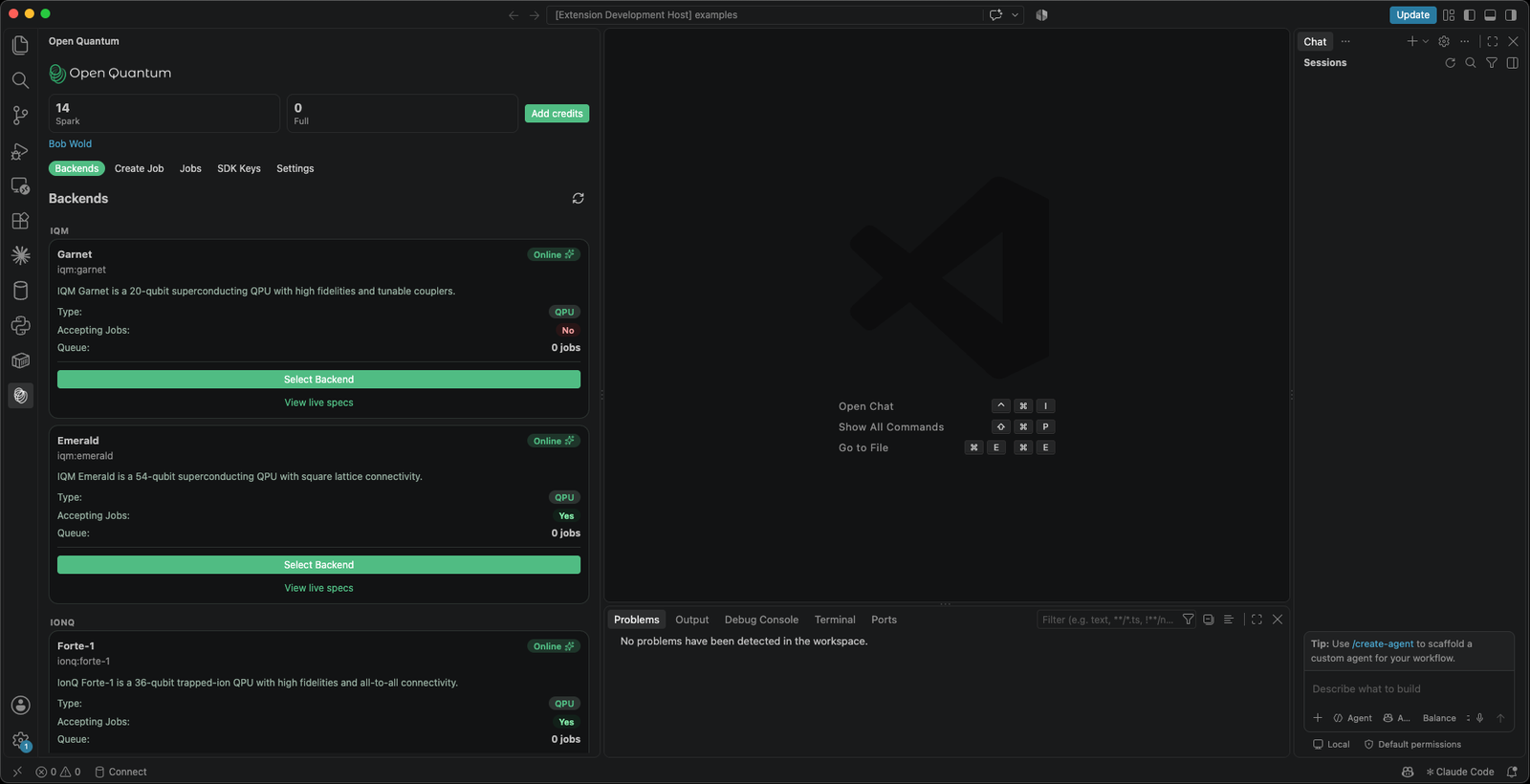
The Backends page lists every backend for the selected organization, including private ones, with:
- Live status indicators and queue depth, refreshed while the view is open.
- Spark availability, so you can see where free credits apply.
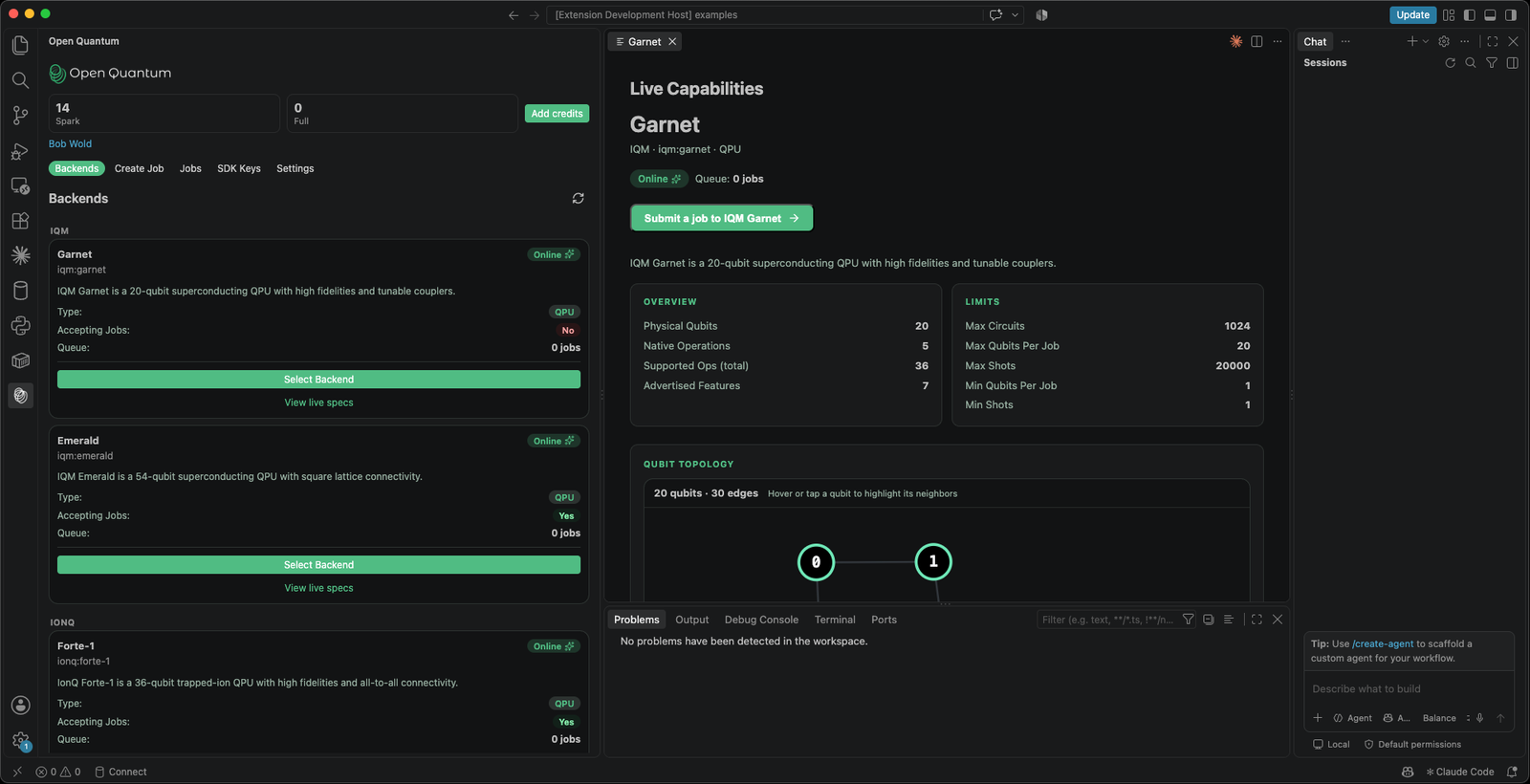
- View live specs, which opens the backend's Live Capabilities: its coupling map, limits, and native and accepted gates. Native gates run on the hardware directly; accepted gates are transpiled to them.
- Select Backend, which opens Create Job with that backend selected.
Jobs and results
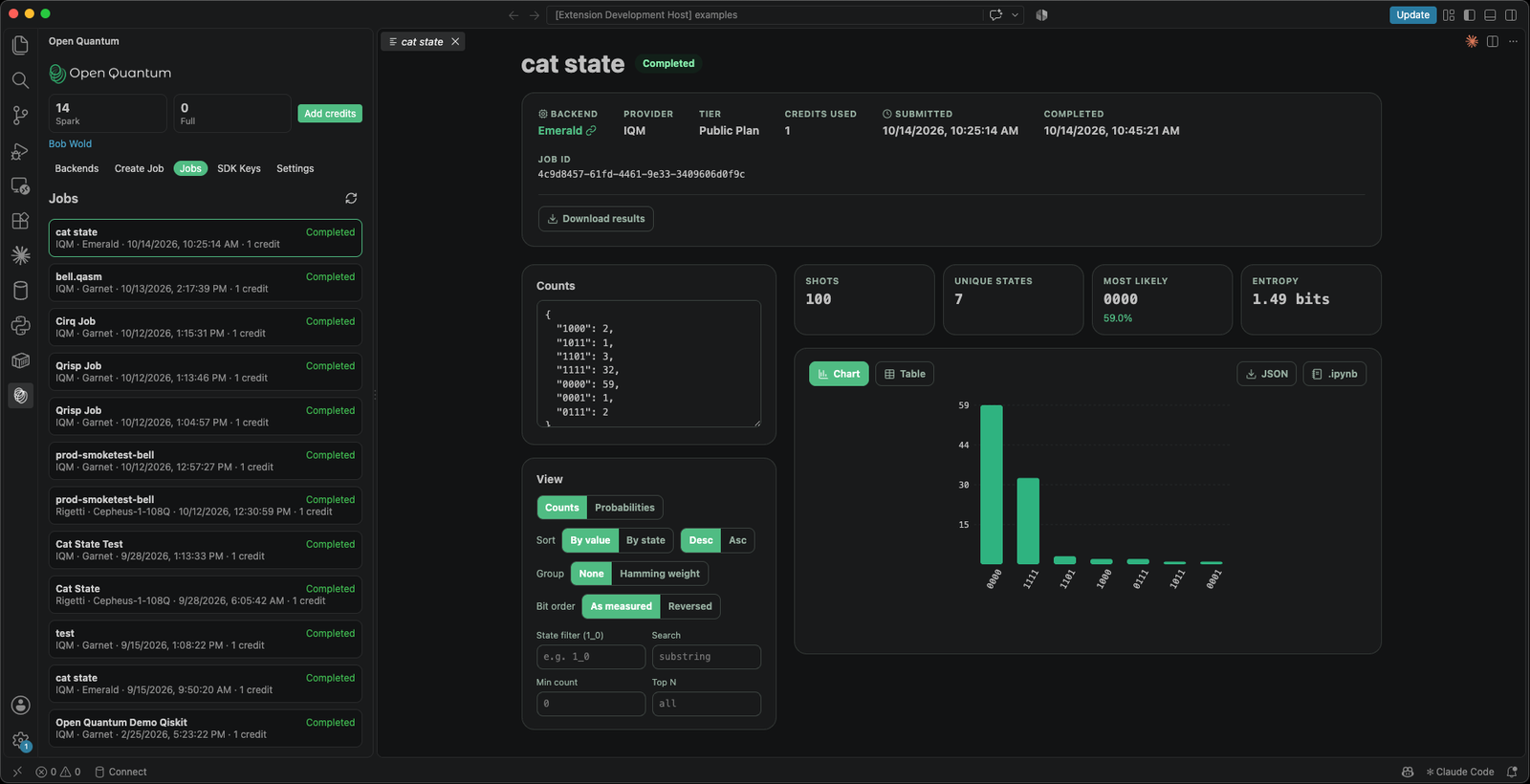
The Jobs page is a job history that refreshes in place every 30 seconds while it is open. Use Load more to page back through older jobs.
Selecting a job opens a panel that matches the website:
- Status, backend, provider, tier, and credits.
- A results explorer with the measurement counts as a chart or a table.
- A state filter (for example
1_0) and a bit-order toggle. - Download results as JSON or as a notebook.
The panel polls for updates while a job is running, so the status and counts fill in on their own.
Commands
All commands are available from the Command Palette under Open Quantum, and from the view.
| Command | What it does |
|---|---|
| Run on Open Quantum | Submit the active .qasm file to a backend. |
| Jobs | Open the Jobs explorer. |
| New Circuit | Create a new OpenQASM file to start from. |
| Set SDK Key | Point the extension at your Open Quantum SDK key. |
| Settings | Open the in-view settings, including the organization switcher. |
Settings and account
Open Settings from the view. Jobs, credits, and private backends follow the selected organization, so if your key has access to more than one, choose it here. Set SDK Key saves or replaces the key the extension uses.
The extension resolves credentials in this order:
- A key saved from Set SDK Key.
- The
OPENQUANTUM_SDK_KEYfile, the same one the Python SDK reads. - The
OPENQUANTUM_CLIENT_IDandOPENQUANTUM_CLIENT_SECRETenvironment variables.
Teams running against a non-production environment can point the extension at alternative identity, management, and scheduler endpoints with an endpoints JSON file. Leave this unset to use the production Open Quantum platform.
Language support
Syntax highlighting and inline error checking cover OpenQASM 2 and OpenQASM 3 across the .qasm, .qasm2, .qasm3, and .openqasm extensions. Errors are underlined in the editor and listed in the Problems panel, so you catch issues before submitting a job.